Advance POS Pro - The Ultimate Enterprise Retail Solution
Advance POS Pro transforms your Botble eCommerce platform into a high-performance Point of Sale system. Designed for speed, reliability, and scalability, it supports multi-vendor marketplaces, barcode scanning, dual-screen setups, and mobile money integration (M-Pesa) out of the box.
Zero Latency
Vue.js SPA architecture ensures instant searching and cart updates without page reloads.
Multi-Vendor
Fully integrated with Botble Marketplace. Vendors only see and sell their own products.
Secure
Domain-locked licensing, role-based access, and detailed shift reconciliation.
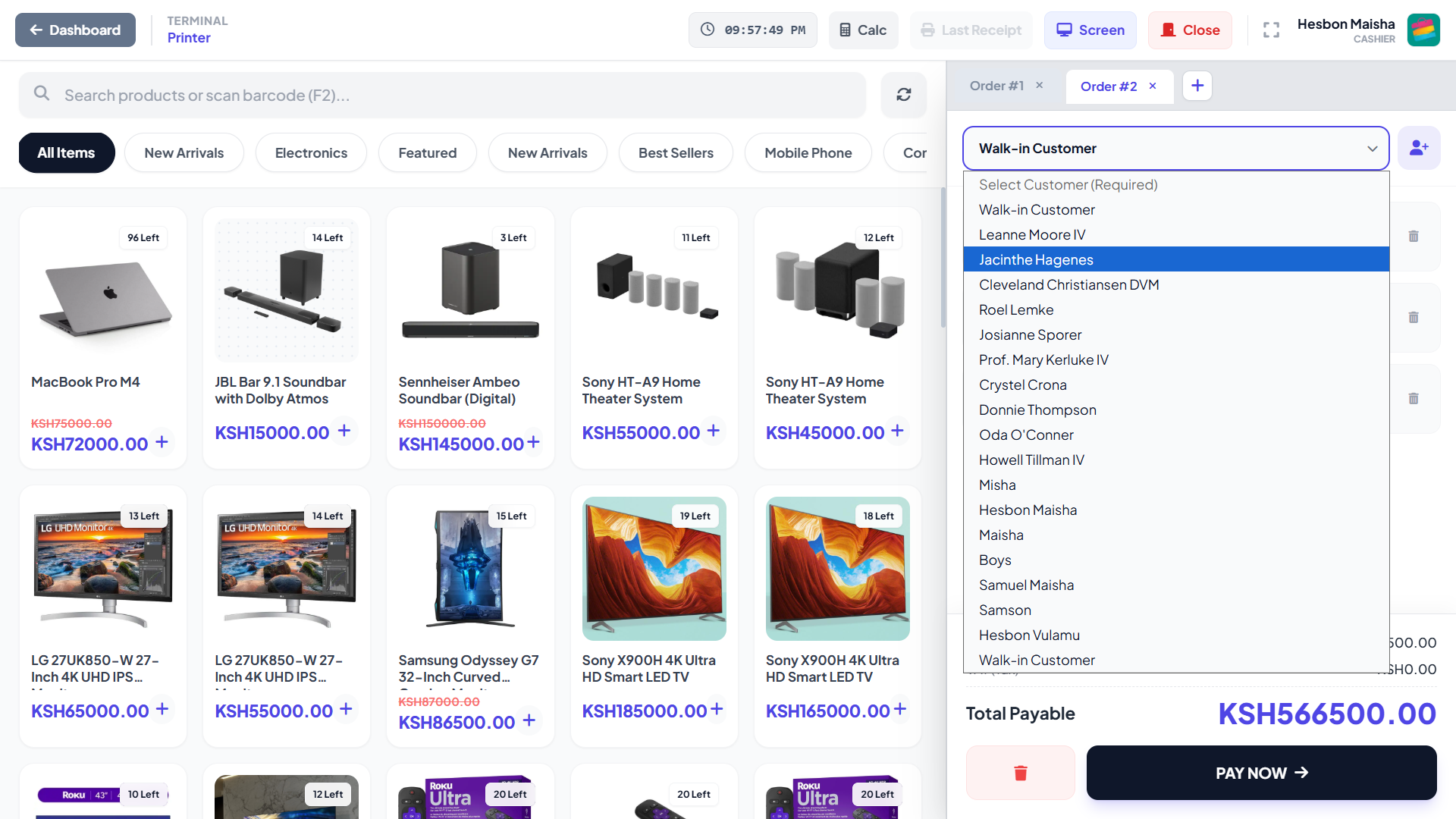
Installation & Activation
- Upload Plugin: Navigate to
Admin > Plugins > Add Newand upload thepos-pro.zipfile. - Activate: Click the "Activate" button. This will automatically create the required database tables (
pos_orders,pos_registers, etc.). - License Verification:
- Upon first access, you will be redirected to the Activation Page.
- Enter your purchased License Key and Client Name.
- The system verifies the key against the remote HQ server and locks it to your domain.
Note: Ensure your server can make outgoing HTTP requests (cURL enabled) to verify the license.
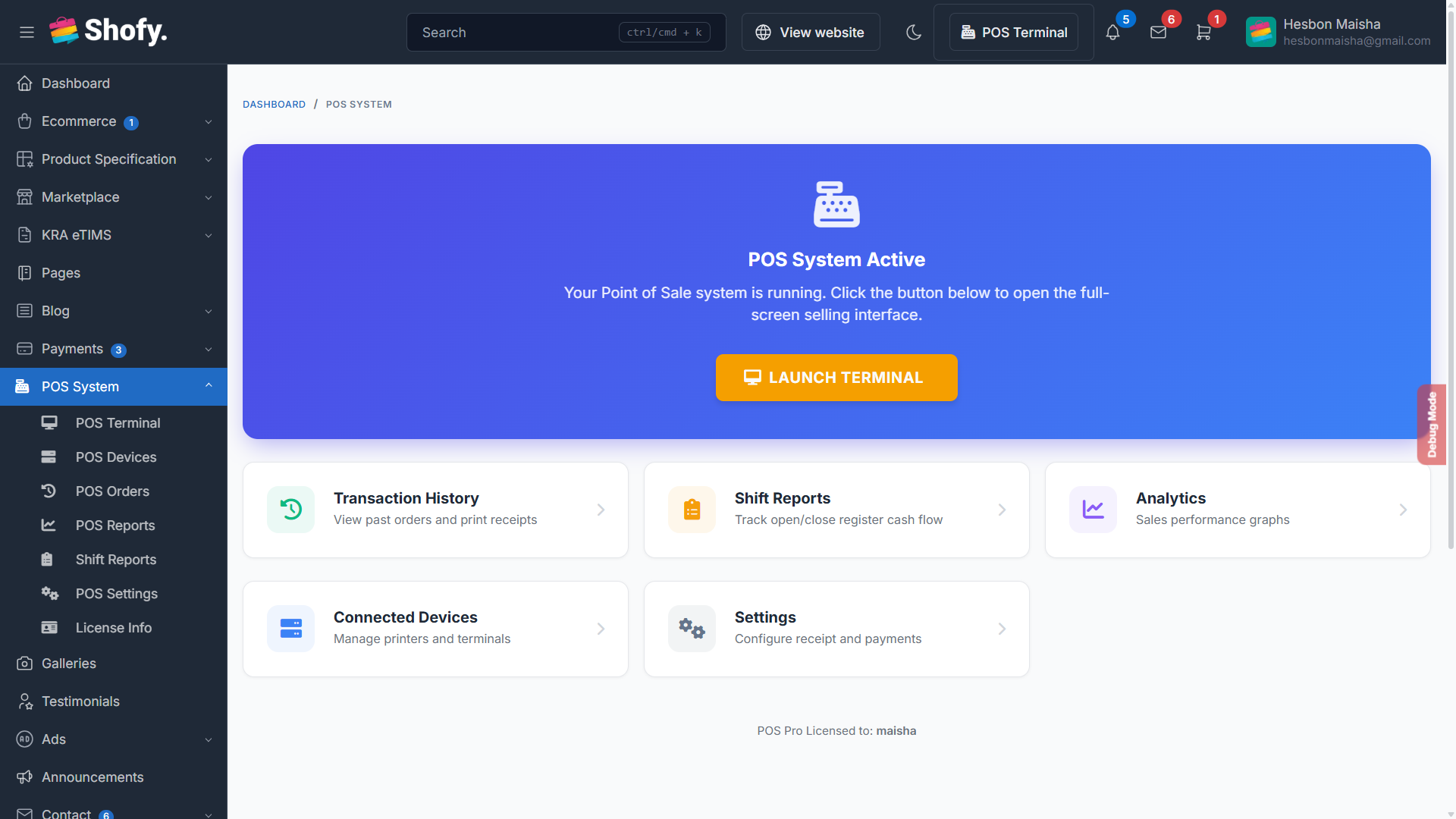
The Terminal Interface
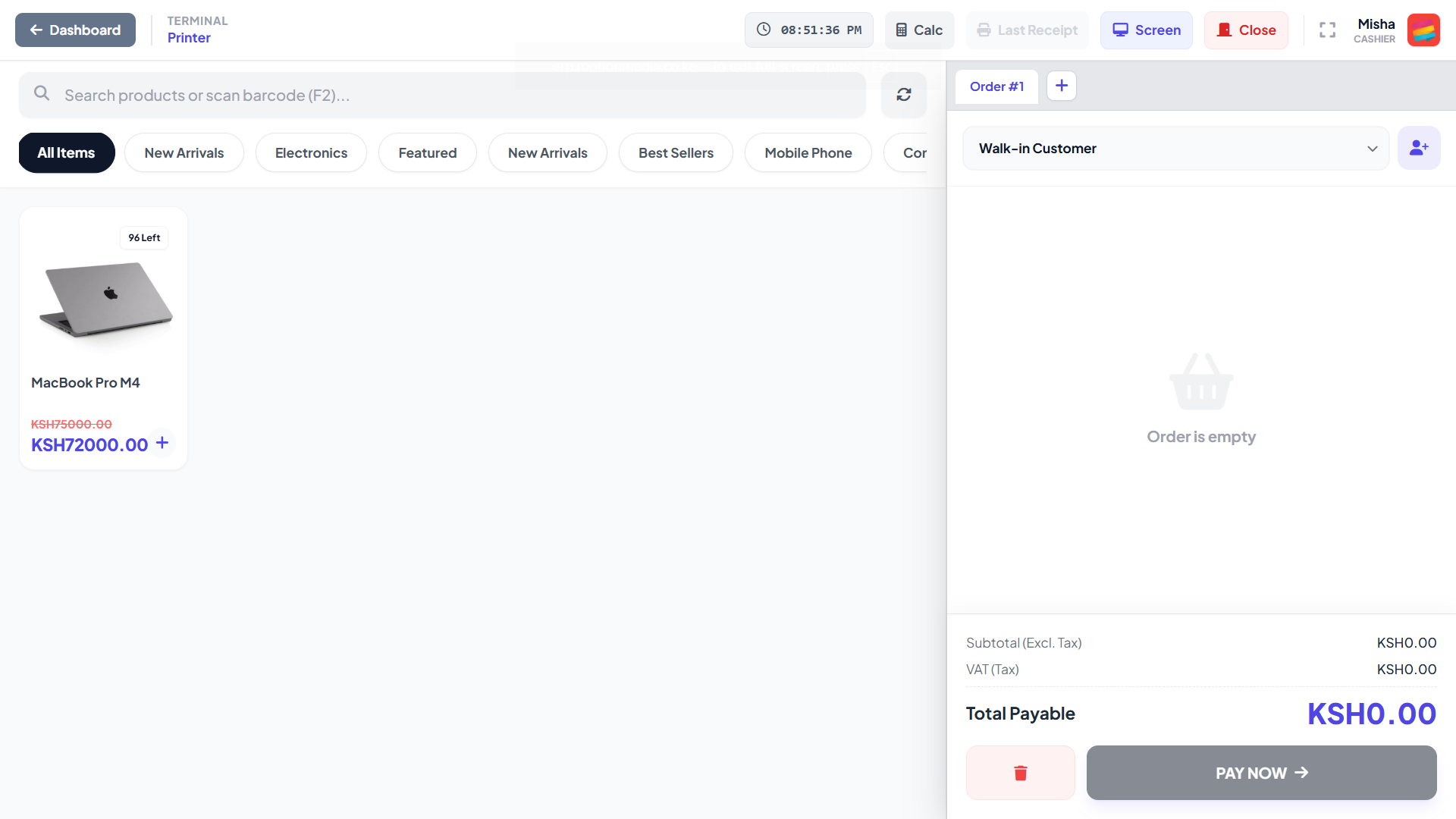
The heart of the system. A distraction-free, full-screen interface optimized for touchscreens and mouse/keyboard.
Dual-Mode Search Engine
- Interactive Search: Start typing product names. Results appear instantly (debounced by 300ms).
- Barcode Scanner Mode: Place focus on the search bar. Scan an item. If an exact SKU match is found, it is auto-added to the cart and the search bar clears instantly for the next scan.
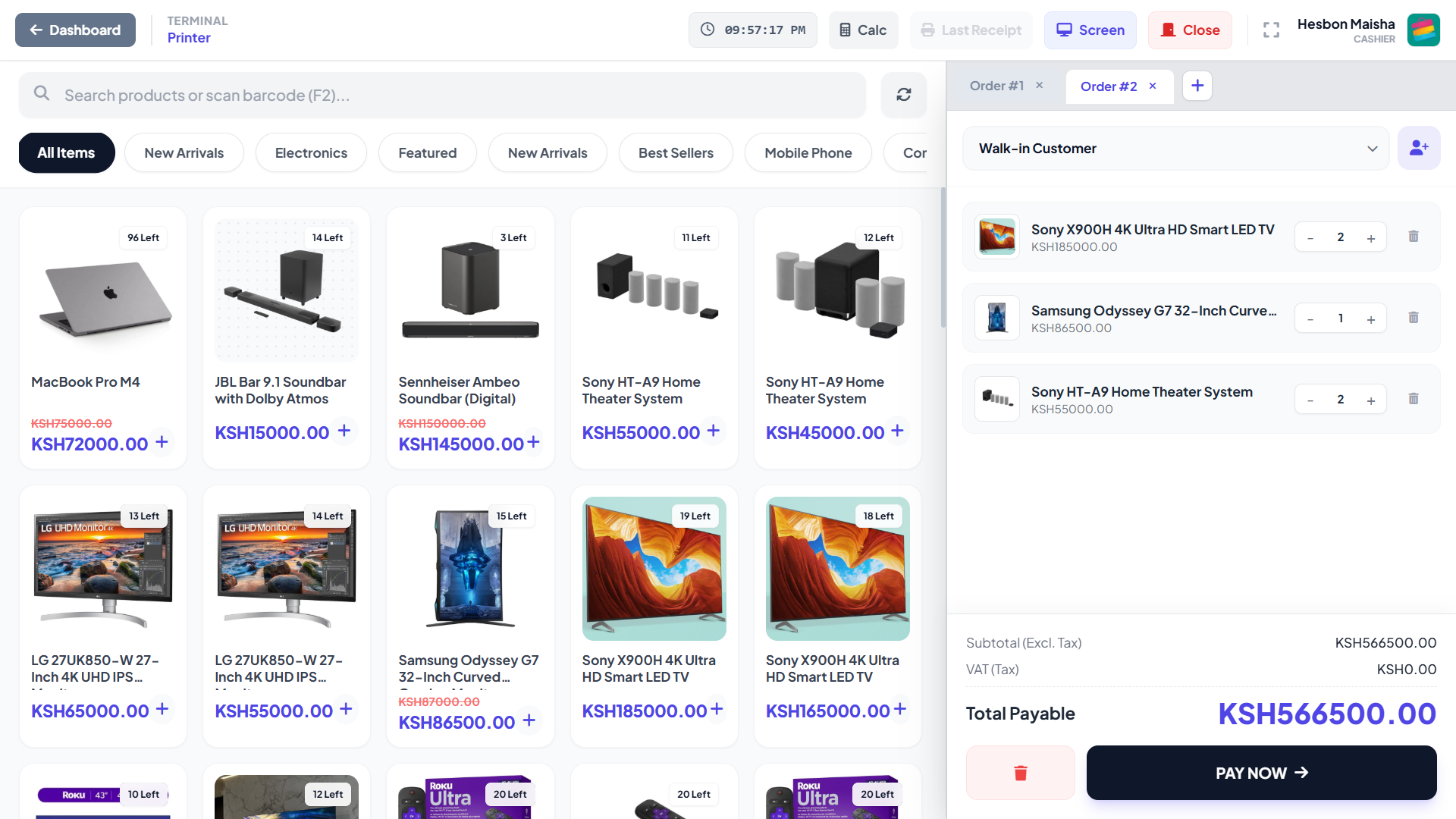
Multi-Tab Order Management
Handle multiple customers at once. Use the + button above the cart to open a new order tab.
- Hold current order and switch to a new customer.
- Cart contents, selected customer, and tax calculations are isolated per tab.
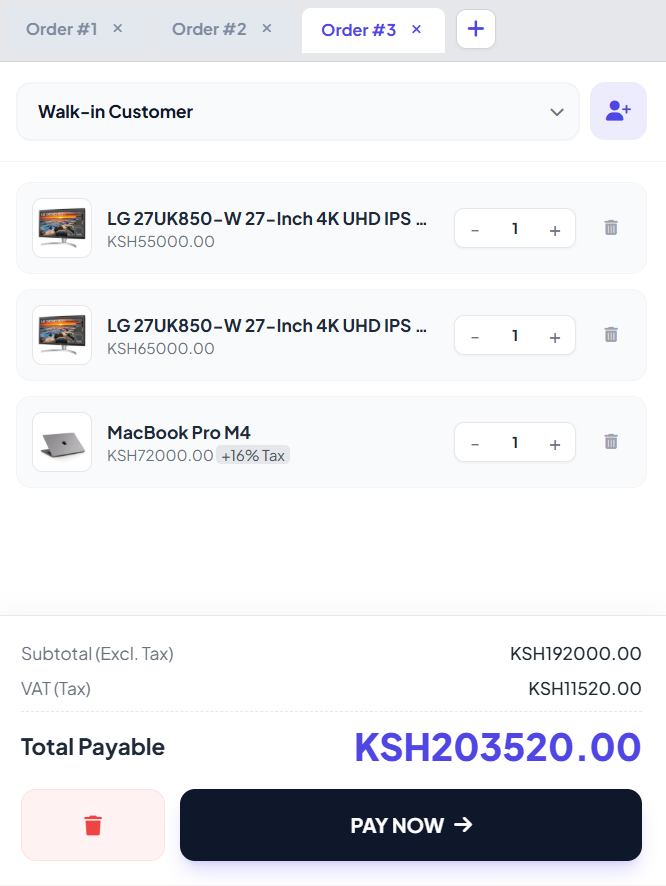
Checkout & Payments
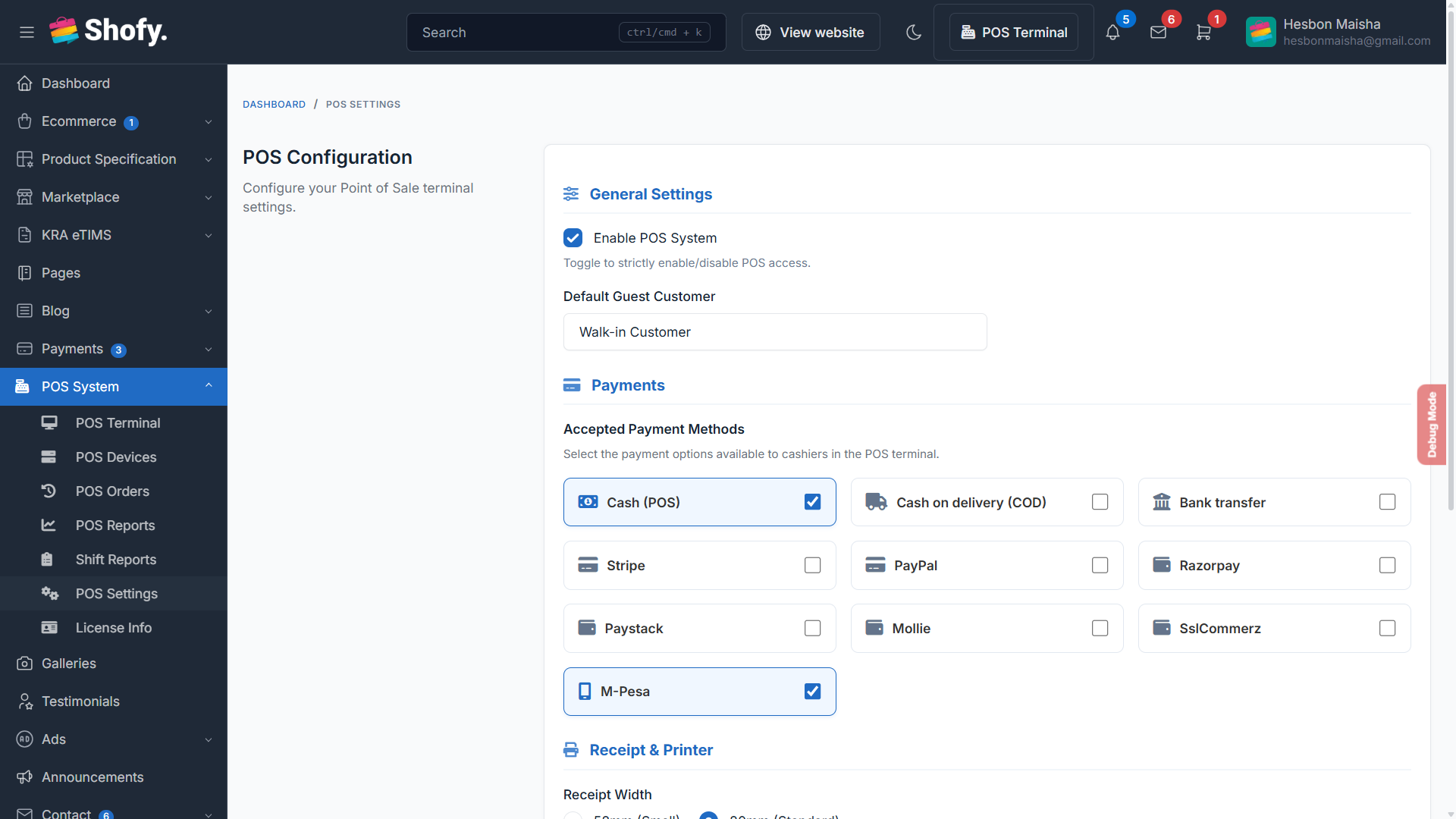
An intelligent modal that adapts based on the selected payment method.
Cash Logic
Automatically calculates change due.
- • Input: Cash Received
- • Output: Change Return (Highlighted)
M-Pesa Integration
Direct integration with Safaricom Daraja API.
- • Send Prompt: Triggers STK Push to customer phone.
- • Validation: Cashier must enter Transaction Code.
Shift Management
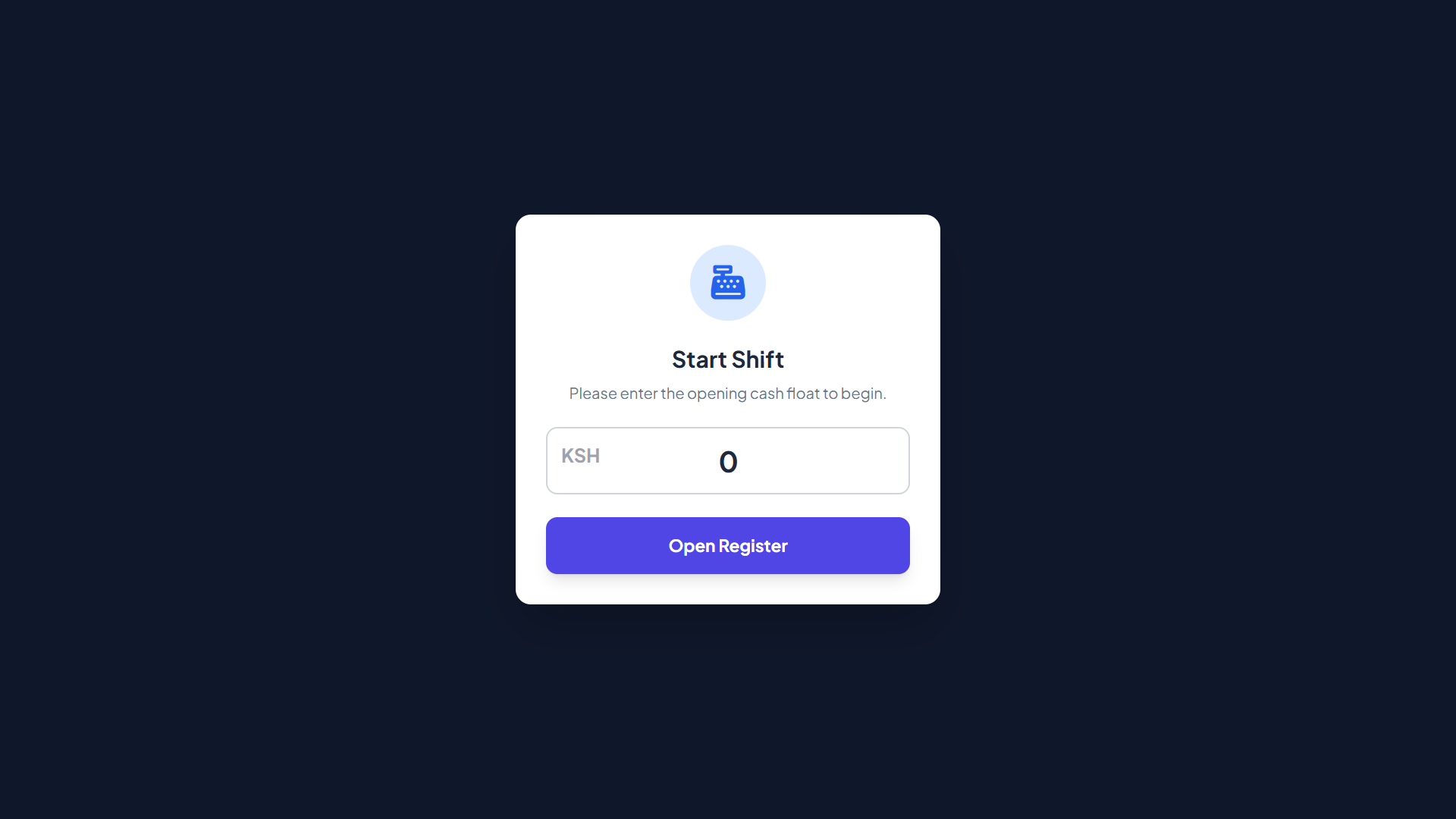
Secure your cash flow with strict Open/Close register logic.
Open Register
The POS screen is locked (blurred) until the cashier enters the Opening Float amount.
Close Register
At the end of the shift, the system calculates Expected Cash (Float + Cash Sales). The cashier enters Counted Cash, and the system records any variance (overage/shortage).
Shift Reports
Admins can view a detailed history of all shifts in POS System > Shift Reports.
Hardware & Customer Screen
Dual-Screen Setup Guide
POS Pro supports a secondary customer-facing monitor without any extra software.
- Connect a second monitor to your PC/POS Machine.
- Set your OS display settings to "Extend Display".
- On the POS Terminal top bar, click "Customer Screen".
- A new window will open. Drag it to the second monitor and press F11 (Fullscreen).
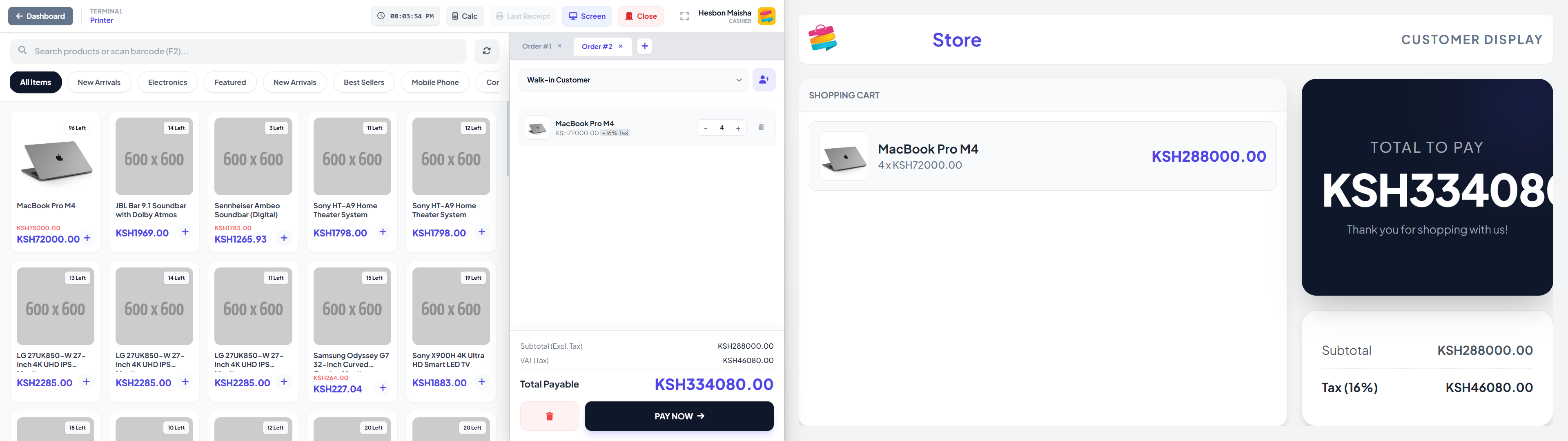
BroadcastChannel API, ensuring zero server lag.
Receipt Printing
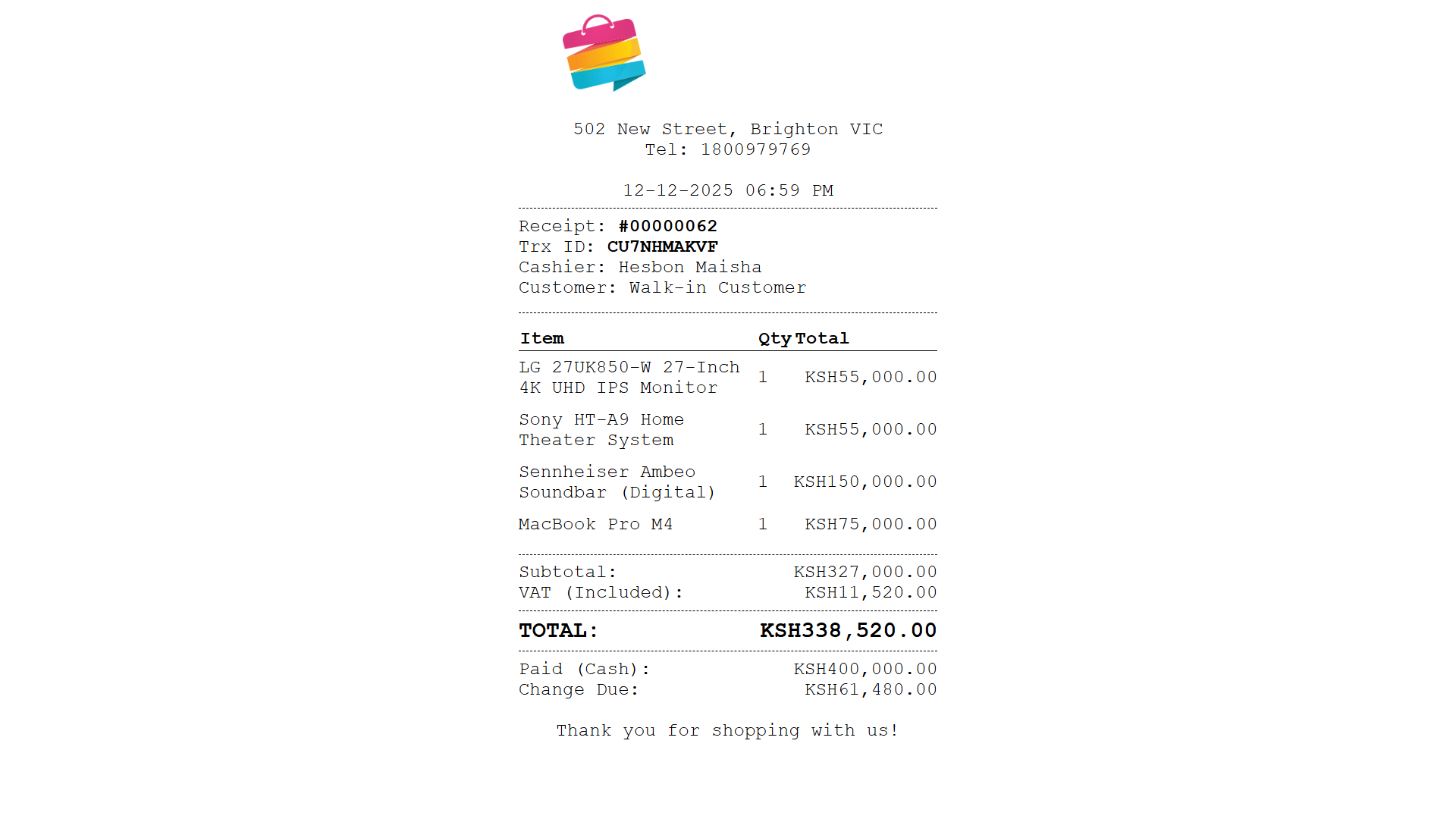
The receipt template is optimized for 80mm Thermal Printers. It dynamically pulls your Store Logo, Address, and VAT Number from Botble settings. Enable "Auto-Print" in POS Settings to skip the print dialog confirmation.
Multi-Vendor Setup
POS Pro automatically detects if the Botble Marketplace plugin is active.
| Role | Product Access | Sales Recording |
|---|---|---|
| System Admin | Sees ALL products from ALL vendors. | Recorded under Main Store. |
| Vendor | Sees ONLY products assigned to their store. | Recorded under Vendor's Store ID. |
The "POS Terminal" link is automatically injected into the Vendor Dashboard sidebar.
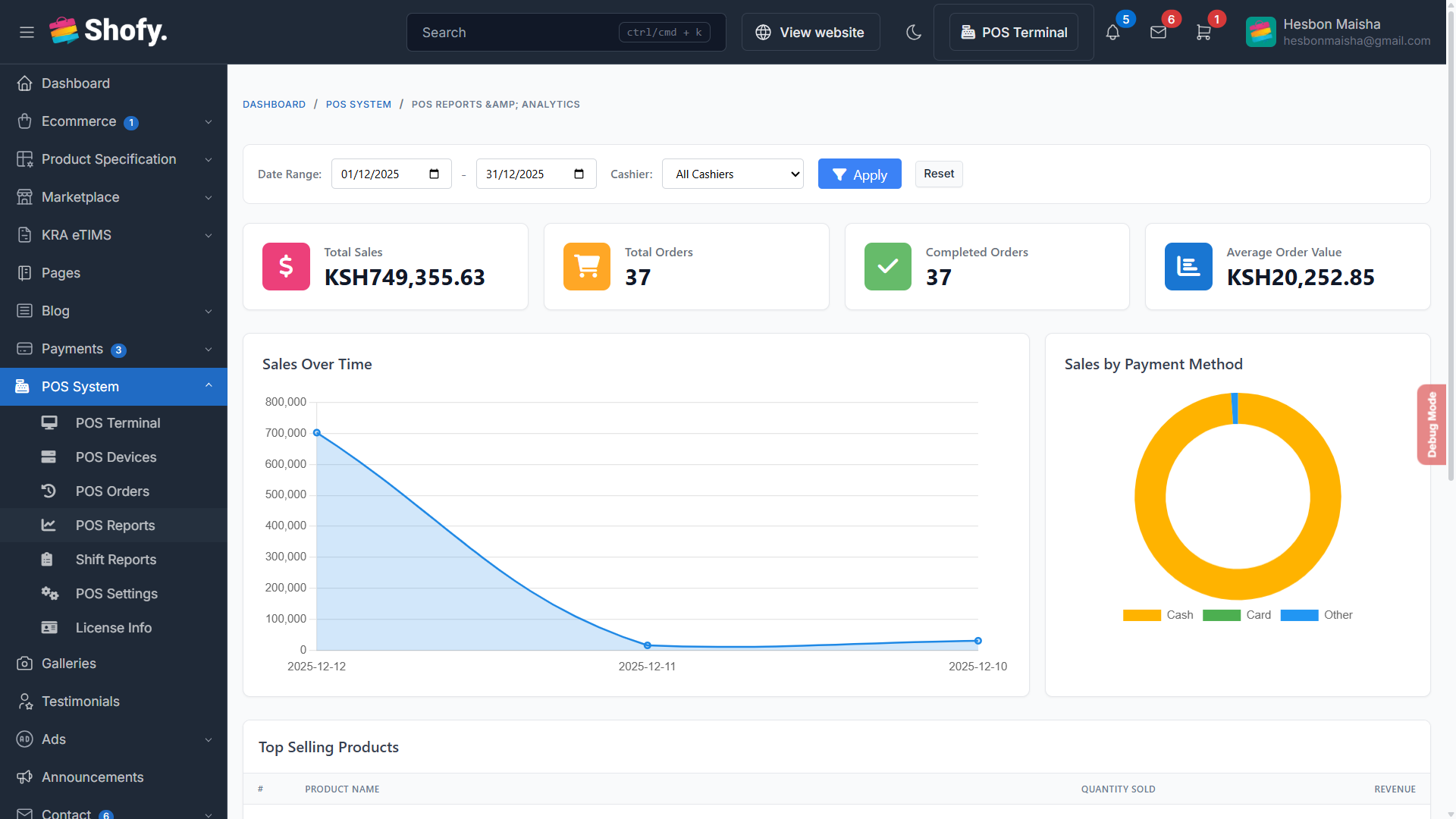
Reports & Analytics
A dedicated dashboard separate from the main Ecommerce reports.
Troubleshooting Guide
Common issues and how to resolve them quickly.
"License Invalid" Error
- Ensure your server has an active internet connection to reach the licensing HQ.
- Domain Lock: Licenses lock to the first domain they are used on. If you moved your site (e.g., from localhost to live), please contact support to reset your key.
Products are not loading / Spinner won't stop
- Clear Cache: Go to
Platform Admin > Cache Management > Clear All. - SSL/HTTPS: Ensure your site is loading over HTTPS. Mixed content (HTTP API on HTTPS site) will be blocked by the browser.
- Check the browser console (F12) for red errors.
Barcode Scanner isn't auto-adding items
The POS relies on the scanner sending an "Enter" key command after the barcode.
- Configure your physical scanner to append a Carriage Return (Enter) suffix.
- Ensure the focus is on the Search Input field (Press F2).
M-Pesa STK Push not arriving
- Verify your Consumer Key and Secret in Botble Payment Settings.
- Ensure the customer phone number format is correct (e.g., 07XX... or 2547XX...).
- Check if your Paybill/Till number is correct and active.
Receipt margins are too wide
This is a browser print setting.
- In the print preview window, click "More Settings".
- Set Margins to None or Minimum.
- Ensure Scale is set to 100%.
Need Help?
Our support team is available to assist you with installation, configuration, and troubleshooting.